In this lab, we’ll use a spreadsheet application to help
determine how much electrical power a standard desktop computer
consumes.
Open Office
Open Office is a re-engineered version of Microsoft Office that
is available in the open source. It is not identical to Office,
but it is very close and is free. We’ll be using OO Calc,
Open Office’s spreadsheet application.
Exercise 2.b.1: Install Open Office and make sure
that Calc is working.
Spreadsheets
Spreadsheet packages are powerful data analysis tools.
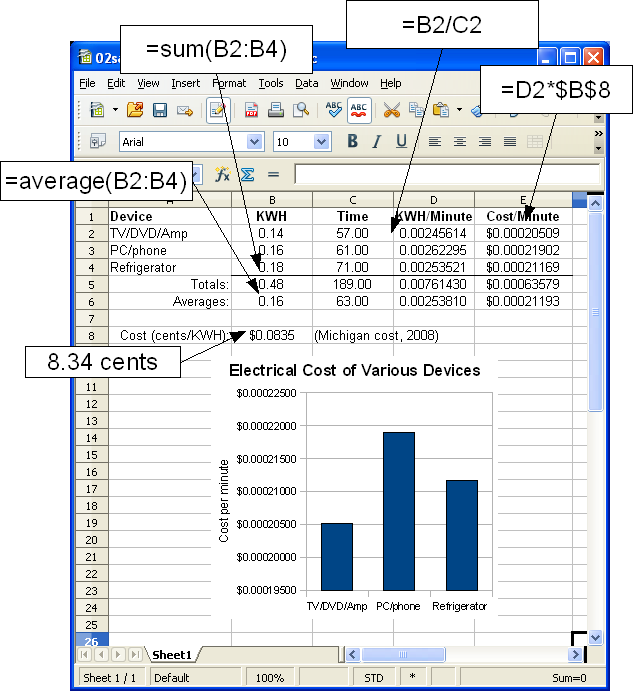
|
Spreadsheets provide the following basic features:
Cells - Cells are addressable units
of information in the two-dimensional spreadsheet. For
example, cell C1 in the diagram contains the text
“Time”. Formulae - Formulae allow you to
insert computed information into cells. For example,
cells D2 and E2 contain the formulae listed in the
diagram. Functions - Functions are used in
formulae to compute specific values. For example, cell
B5 call sum() to compute the sum of the values in cells
B2 through B4 (specified by the cell range
B2:B4), and cell B6 uses average() in a
similar manner. Addressing - Addresses in formulae
are relative by default, meaning that the
system will change them automatically when
copied. Absolute addresses, specified with
$, remain the same when copied. For
example, when the contents of cell E2 are
copied down its column, the “D2” changes to
“D3” and so forth, but the
“$B$8” stays the same. Tables/Charts - Spreadsheets allow
the construction of various tables and charts. For
example, the bar chart in the diagram is created by
selecting cells A1:A4 and
E1:E4 (ctrl-click both columns), choosing
“insert”-“chart”, and
following the chart wizard.
|
If you are new to spreadsheets, then you can go through an Open
Office Calc tutorial (e.g., http://spreadsheets.about.com/od/otherspreadsheets/ss/080616_24_calc.htm).
Computers and Power Consumption
Exercise 2.b.2: Use the Kill-a-Watt device to
determine the average amount of power consumed by your
computer. Start by using the World-Wide-Web to figure out how to
use the kill-a-watt device, and then try to answer the following
questions:
- How much power does your system consume (in kilowatt
hours)?
- Which computer component uses the most power?
- Does the power consumption change if your computer is
being heavily used or is just sitting there idle?
- How does computer power consumption compare with the
amount of power consumed by other electronic devices?
Record your results in a spreadsheet such as the one shown
above. Include the 5 columns shown in that example and one line
for each device configuration (e.g., PC with power on, PC with
power turned off).
Electricity costs money, which means that your
“free” computer will end up costing you money over
time. It’s important to plan for this cost and to take steps
to minimize it. Until recently, very few people have seriously
considered this cost.
Exercise 2.b.3: Add a column to your spreadsheet
that lists the cost per year for each
configuration. You’ll need to figure out how many kilowatt
hours your computer will consume over the space of a year.
Saving Electrical Power
Computers do provide power-saving features designed to minimize
their cost of operation. These features include the following:
- Computers have power-off buttons.
- LCD monitors use less power that CRTs.
- Windows XP provides low-power settings - to see these
features, click on “Start” and then choose
“Control Panel”-“Power Options”.
- Power-saving hardware is becoming more available.
Generally speaking, few people take advantage of any of these
power-saving features. You should.
Exercise 2.b.4: Explore the low-power settings
available to you in Windows XP and configure your machine to be
useful but also to conserve power. Redo your power
consumption/cost estimates under the various low-power
configurations on your machine (e.g., with the monitor asleep,
with the system in hibernate mode) and add rows to your chart
appropriately.
Checking In
When you are finished with all the exercises, do the
following:
- Submit your completed spreadsheet to the course
instructor via email.